How to Add Music to Your WhatsApp Status

Think about this for a second—how often has a song brought back a memory or lifted your spirits instantly? That’s the power music holds. Now imagine blending that energy into your WhatsApp Status updates. Whether it’s a snippet of your favorite song or a trending beat, adding music makes your status come alive.

While WhatsApp doesn’t offer built-in options like Instagram or TikTok (yet), there are plenty of clever workarounds. In this guide, I’ll walk you through the easiest ways to turn your plain status updates into mini musical moments.

How to Add Music to Your WhatsApp Status

๐Ÿ“ฒ What You Can (and Can’t) Do with WhatsApp Status

Before diving into the how-to, it’s important to know what’s possible with WhatsApp’s current setup.

๐ŸŽฏ Here’s what WhatsApp does allow:
๐ŸŽฅ 30-second videos
๐Ÿ–ผ️ Photos, text, emojis, and GIFs
๐ŸŽจ Drawing tools and text overlays

๐Ÿšซ But here's the catch:
๐Ÿ”‡ No direct way to add music from your phone’s library
๐ŸŽต No built-in audio editing features
๐Ÿ“ก No access to popular music services within the app

It might sound limiting, but don’t worry—you’re about to discover how to get around these limitations effortlessly.


๐ŸŽง Popular Ways to Add Music to Your Status

To add music to your WhatsApp Status, you've got three main routes:

๐ŸŽถ Option 1: Play music in the background while recording
๐ŸŽฌ Option 2: Use a video editor to layer audio
๐Ÿงช Option 3: Test out WhatsApp’s new features (available only in select locations)

Each method works depending on what you need—whether it’s a quick update or a more polished clip.


๐Ÿ’ก Method 1: Background Music While Recording

This one’s super straightforward and perfect if you’re short on time.

๐ŸŽต Here’s what you do:

  1. Open any music app (Spotify, Gaana, Apple Music, etc.)

  2. Start playing the song you want in the background

  3. Without pausing the track, open WhatsApp

  4. Tap Status > Camera Icon

  5. Start recording your video—the music will get picked up by your phone’s mic

  6. Add text or emojis if needed, then post

✅ Why it works:

  • No apps needed

  • Quick and spontaneous

  • Audio syncs naturally with your environment

๐Ÿ”‡ Downsides:

  • Background noise may interfere

  • You can’t adjust volume or trim music

  • Works best when volume is high and clear


๐ŸŽฌ Method 2: Add Music Using Video Editing Apps

Want a more polished look? Use an editing app that allows you to control music, timing, and effects.

๐Ÿ“ฑ Some great free apps:

  • InShot – Beginner-friendly, lots of music choices

  • CapCut – Great for trends and viral clips

  • VN Video Editor – Free, advanced features, no watermark

๐Ÿ› ️ Steps with InShot (for example):

  1. Open InShot and choose a video or image

  2. Tap on “Music” to select a track

  3. Choose from the app’s library or upload your own

  4. Adjust the music to fit your video (trim, fade in/out)

  5. Export the final video

  6. Upload it as your WhatsApp Status

๐ŸŒŸ Why it's awesome:

  • You get total control over music and visuals

  • Great for special occasions, announcements, or reels

  • Perfect if you want to stand out from the crowd


๐Ÿ› ️ Method 3: Using WhatsApp’s Experimental Music Stickers

WhatsApp has started testing music stickers in some regions. This feature is still in beta and not widely available yet.

๐Ÿงช If you’re lucky and have access:

  1. Update WhatsApp to the latest version

  2. Head to the Status tab

  3. Tap the pencil icon to create a text status

  4. Look for a ๐ŸŽต or ๐ŸŽ™️ icon

  5. Choose a short music clip and post it

๐Ÿ“ข Heads-up:

  • Availability depends on your country and app version

  • Might not support full-length songs

  • Still evolving as a feature


๐ŸŽต Apps That Help You Find the Perfect Soundtrack

Need fresh music ideas? These apps will help you find, download, or even record the ideal tune for your status.

๐ŸŽง Top picks include:
๐Ÿ“ฅ Snaptube or YMusic – Download audio from YouTube
๐ŸŽ™️ Voice Recorder – Record personal audio or singing
๐ŸŽต Boomplay, SoundCloud, or Audiomack – Indie and trending tracks
๐ŸŽผ InShot’s built-in music – Royalty-free and easy to apply

๐Ÿ’ก Pro Tip: Always preview your clip with music before uploading—it makes a huge difference.


⚠️ Common Mistakes You’ll Want to Avoid

๐Ÿ”‡ Don’t record in noisy environments – Your song will sound muffled
๐ŸŽถ Avoid long music clips – Stick to 30-second highlights
๐Ÿ”‰ Don’t overpower your voice (if you're speaking) – Balance volume
๐Ÿงจ Avoid clashing moods – Don’t pair sad music with cheerful visuals

๐Ÿ› ️ A little trimming and volume control go a long way in making your video status feel smoother and more professional.


๐Ÿ›ก️ A Quick Look at Copyright and What’s Okay

Even though you're sharing with friends and family, it’s good to stay mindful of music rights.

๐Ÿ” Here’s what’s generally safe:

  • Personal use for short clips

  • Royalty-free tracks from licensed libraries

  • Giving credit if possible (especially if it’s original work)

๐Ÿ“› Be cautious if:

  • You're using commercial music as a brand

  • Your WhatsApp is tied to a business or public account

  • You're uploading full-length copyrighted tracks

To stay safe, consider platforms like:
๐ŸŽต Epidemic Sound
๐ŸŽผ Pixabay Music
๐ŸŽถ Bensound


๐Ÿš€ Tips to Make Your Music Status Stand Out

๐Ÿช„ Add text overlays that sync with lyrics
๐ŸŽจ Use color filters or boomerangs
๐ŸŽฏ Share during high-traffic hours (evenings work best)
๐Ÿ“ข Use emotional or relatable audio clips
๐Ÿ’ฅ Make it funny, nostalgic, or dramatic—people love feelings

๐Ÿ“ˆ Bonus Tip: Repost top-performing statuses to your Instagram Reels or YouTube Shorts to gain more reach!


๐Ÿ Wrapping Up: Hit Play on Your Creativity

And that’s a wrap! You’ve now got the full toolkit to add music to your WhatsApp Status and turn basic updates into creative expressions. Whether you're celebrating a moment, sharing a vibe, or just want to add some rhythm to your day, these tricks will help you do it with style.

So go ahead—pick your favorite song, get creative, and let your status tell its story in sound. ๐ŸŽถ 

Unlocking the Power of WhatsApp: Tips and Tricks for Mastering the Messaging Game

In today's fast-paced digital world, communication is key, and WhatsApp stands at the forefront as one of the most popular messaging platforms globally. With over 2 billion users worldwide, WhatsApp has become more than just a messaging app; it's a social lifeline, a business tool, and a platform for staying connected with friends and family. But are you making the most of what WhatsApp has to offer? Dive into this guide as we uncover some exciting tips and tricks to elevate your WhatsApp experience to the next level.


Unlocking the Power of WhatsApp: Tips and Tricks for Mastering the Messaging Game


1. Mastering Privacy Settings:

Privacy is paramount in the digital age, and WhatsApp provides robust tools to ensure your conversations remain confidential. Customize your privacy settings by navigating to "Settings" > "Account" > "Privacy." Here, you can control who sees your profile photo, status, and last seen time. Additionally, utilize the "Block" and "Report" features to prevent unwanted messages and maintain a safe online environment.

2. Customizing Notifications:

Tired of being bombarded with incessant message notifications? Take control of your notifications by customizing them to suit your preferences. In WhatsApp, you can mute individual or group chats, disable message previews, and even assign unique notification tones to different contacts. Simply long-press a chat, tap on the three dots at the top right corner, and select "Custom Notifications" to unleash this feature.

3. Organizing Chats with Labels:

With a multitude of chats flooding your WhatsApp inbox, staying organized can be challenging. Fortunately, WhatsApp offers a nifty solution in the form of labels. Simply long-press a chat, tap on the label icon, and choose from a range of pre-defined labels or create your own. Whether it's "Work," "Family," or "Favorites," labels help streamline your chats for effortless navigation.

4. Utilizing WhatsApp Web:

Did you know you can access WhatsApp from your computer? WhatsApp Web allows seamless synchronization between your mobile device and desktop, enabling you to send and receive messages without reaching for your phone. Simply scan the QR code displayed on your computer screen using your phone, and voila – you're connected!

5. Mastering Shortcuts and Gestures:

Save time and streamline your messaging experience with WhatsApp's array of shortcuts and gestures. For instance, swipe right on a chat to mark it as read, or swipe left to archive it. Double-tap a message to like it, or use the "@" symbol followed by a contact's name to mention them in a group chat. These simple yet effective shortcuts enhance efficiency and make navigating WhatsApp a breeze.

6. Discovering Hidden Features:

WhatsApp is brimming with hidden gems waiting to be unearthed. For instance, did you know you can format your text by enclosing it in asterisks for bold, underscores for italics, and tildes for strikethrough? Or that you can pin important chats to the top of your inbox for easy access? Explore the app's settings and menus to uncover these hidden features and unlock their full potential.

7. Backup and Restore:

Safeguard your precious chats and media by regularly backing up your WhatsApp data. Navigate to "Settings" > "Chats" > "Chat Backup" to set up automatic backups to your Google Drive or iCloud. In the unfortunate event of data loss or device change, simply restore your backup to retrieve your chats and media – it's that simple!

8. Embracing WhatsApp Business:

For entrepreneurs and small businesses, WhatsApp Business offers a powerful platform for customer engagement and communication. Create a business profile with essential information such as your address, business hours, and website, and utilize features like quick replies, automated messages, and labels to streamline your interactions and provide exceptional customer service.

In conclusion, WhatsApp is more than just a messaging app – it's a versatile tool packed with features to enhance your communication experience. By mastering the tips and tricks outlined in this guide, you'll unlock the full potential of WhatsApp and stay ahead in the messaging game. So go ahead, explore, experiment, and revolutionize the way you connect with the world – one message at a time! 

How to Turn Off Read Receipts in Facebook Messenger, Apple iMessage, WhatsApp

How to Turn Off Read Receipts in Facebook Messenger, Apple iMessage, WhatsApp

 WhatsApp, Facebook Messenger, and Apple's iMessage — all three apps have the read receipt function that notifies the sender when the receiver has read their message. Read receipts are an important part of communication through messaging apps. It allows users to understand whether their message has been seen by the recipient or not. WhatsApp, Facebook Messenger, and iMessage support the read receipt function by has different ways of notifying the sender that their message has been read. But if you like to keep things more private and not allow the sender the freedom to know when you have read their message, you can turn these read receipts off at any time. For instance, if you keep your read receipts on WhatsApp a blue tick appears next to the message when the recipient has read it.

How to Turn Off Read Receipts in Facebook Messenger, Apple iMessage, WhatsApp


We've compiled a step by step guide on how to turn off read receipts on apps like WhatsApp, Facebook Messenger, and Apple's iMessage.


How to turn off read receipts in WhatsApp

In order to close read receipts on your WhatsApp, follow these steps.


Open the WhatsApp app. Click on the three dots icon on the top-right corner of the screen. Click on Settings.

Once in Settings, click on Account > Privacy.

An option called Read Receipt can be found here. Toggle it off to disable it in individual chats. You cannot disable read receipts for group chats.

How to turn off read receipts in iMessage

Turning off read receipts on iMessage requires a few more steps than WhatsApp.

  1. Head to the iMessage app on your iOS device.
  2. Go to Settings and tap on Messages.
  3. An option called Send Read Receipts can be found here. Toggle it off to disable the ability completely.
  4. If you want to disable read receipts for specific chats, head to that user's chat and click on the user's profile pic.
  5. Select Info icon and toggle off Send Read Receipt option.

How to turn off read receipts on Facebook Messenger

In Facebook Messenger, unfortunately, there is no option to disable read receipts. There is an option in settings called Active On, which helps in disabling the Active Now banner attached to your name every time you come online. It also shows the last time you were online, and toggling this off will not let your friends see that information. This can be found by going in the Messenger app > clicking on the profile icon > From Active 'On' > Toggle it 'Off'. However, there is also a workaround for reading a message without letting the sender know.

  1. After you receive a new message on Facebook Messenger, just turn on Airplane Mode from your phone's Settings, which will disable Internet and network connections on the device.
  2. You can then open Messenger and view the message without an Internet connection.
  3. After you finish reading, close the app, and swipe it out of your app drawer.
  4. You can now turn off Airplane mode. This way the sender will not be notified that you have read their message till you open the app again.

Explained: WhatsApp’s new privacy policy and what you can do about it

Users have until February 8 to accept these new terms, WhatsApp meanwhile has reiterated that all messages are end-to-end encrypted.

A new notification has been popping up on everyone’s WhatsApp telling them that it's terms and policies are being updated. Users have until February 8 to accept these new terms, and WhatsApp has indicated that users may not be able to access their WhatsApp accounts if they do not accept the new terms and agreements (updated on January 4).

Explained: WhatsApp’s new privacy policy and what you can do about it

What is WhatsApp sharing with Facebook?

Facebook-owned WhatsApp’s updated policy says that it may share your information with its family of companies to “facilitate, support and integrate their activities and improve our services.”

Whatever information WhatsApp automatically collects from you will be shared with Facebook. This includes your mobile phone number and basic information you give when you create a WhatsApp account.

It also collects and shares user activity, how often you use WhatsApp, features you use, your profile photo, your status and ‘about’ information.

It also collects device-level information like what device you use, your mobile network, IP address, among others. It also collects and uses precise location information from your device, but with your permission.

“We may use the information we receive from them, and they may use the information we share with them, to help operate, provide, improve, understand, customize, support, and market our Services and their offerings, including the Facebook Company Products,” WhatsApp says.

Your information could also be used by Facebook and its other products to make suggestions for you, personalize features and content, help you complete purchases and transactions, and show relevant offers and ads across the Facebook Company Products

The Facebook products include Facebook, Messenger, Instagram, Portal-branded devices, Oculus Products, Facebook Shops, Spark AR Studio, Audience Network, NPE Team apps and any other features, apps, technologies, software, products or services offered by Facebook Inc.

What about your messages?

WhatsApp has reiterated that all messages are end-to-end encrypted. This means that neither WhatsApp, not third parties will access or read your messages.

“Nothing you share on WhatsApp, including your messages, photos, and account information, will be shared onto Facebook or any of our other family of apps for others to see, and nothing you post on those apps will be shared on WhatsApp for others to see,” WhatsApp says.

WhatsApp doesn’t store your messages once they’ve been delivered. Messages are stored on the user’s device and not on WhatsApp’s servers. Once messages are delivered, they are deleted from its servers.

In the course of delivering a message, WhatsApp’s servers store undelivered messages in encrypted form for up to 30 days and if a message is still undelivered after 30 days, WhatsApp claims to delete it.

“When a user forwards media within a message, we store that media temporarily in encrypted form on our servers to aid in more efficient delivery of additional forwards,” WhatsApp adds.

What about your transaction data?

Now that WhatsApp has launched a payments feature in India, it says that if you use WhatsApp Pay, additional information, including payment account and transaction information is processed by the company. This is information required to complete the transaction such as payment method, shipping details and transaction amount.

“If you use our payments services available in your country or territory, our privacy practices are described in the applicable payments privacy policy,” it adds.

What about ads?

WhatsApp does not allow third-party ads on its services. “We have no intention to introduce them, but if we ever do, we will update this Privacy Policy,” it says.

However, WhatsApp can use information it has about you to communicate to you about its services and market its services and those of other Facebook companies.  

What about businesses and third-part services?

WhatsApp recently launched WhatsApp Business, which allows businesses to contact and communicate with customers through its app. This could include making purchases through the app, or businesses contacting you, sending you order confirmations, flight tickets, tickets to other events, etc.

While chats between you and a Business are end-to-end encrypted, WhatsApp says that once the message is received, it will be subject to the business’s own privacy practices.

“Some businesses will be able to choose WhatsApp’s parent company, Facebook, to securely store messages and respond to customers. While Facebook will not automatically use your messages to inform the ads that you see, businesses will be able to use chats they receive for their own marketing purposes, which may include advertising on Facebook. You can always contact that business to learn more about its privacy practices,” WhatsApp says.

What choice do you have?

To continue using WhatsApp, you need to accept the new terms and conditions. If you do not wish to, WhatsApp too, suggests deleting your account.

For users who have already accepted the new terms and conditions, but do not want WhatsApp to share data with Facebook, or other businesses, they will have an additional 30 days to opt out and delete their account.

What happens if you delete your account?

WhatsApp says that when you delete your WhatsApp account, your undelivered messages are deleted from its servers along with any of your other information it no longer needs to operate and provide its services.

However, users must ensure they not only uninstall WhatsApp, but must delete their account from WhatsApp. This can be done by going to settings > Account and selecting ‘Delete my account’.

“Please remember that when you delete your account, it does not affect the information other users have relating to you, such as their copy of the messages you sent them,” WhatsApp’s privacy policy adds.

How to customize in-app notifications in WhatsApp for iPhone

 Buzzing, beeping, and ringing, what to do when WhatsApp is telling you what’s up.

Your phone is probably constantly buzzing, beeping, and vibrating because of various alerts that pop up from other apps on your phone. It can be hard to know which alerts are coming from where. WhatsApp will let you customize the notifications and alerts you receive so it’s easy to know who is contacting you without even having to look at their name. You can change the notifications and alerts for individual contacts, all messages, all group messages, or all calls that come through WhatsApp.

How to customize in-app notifications in WhatsApp for iPhone

Like most apps on the iPhone, notifications are a little different when you are actually in the app. If you are chatting with your friends or editing your contact list you don’t want to miss important notifications from people. You can customize these in-app notifications in WhatsApp with just a few simple taps on the screen.

How to change the alert style of in-app notifications in WhatsApp for iPhone

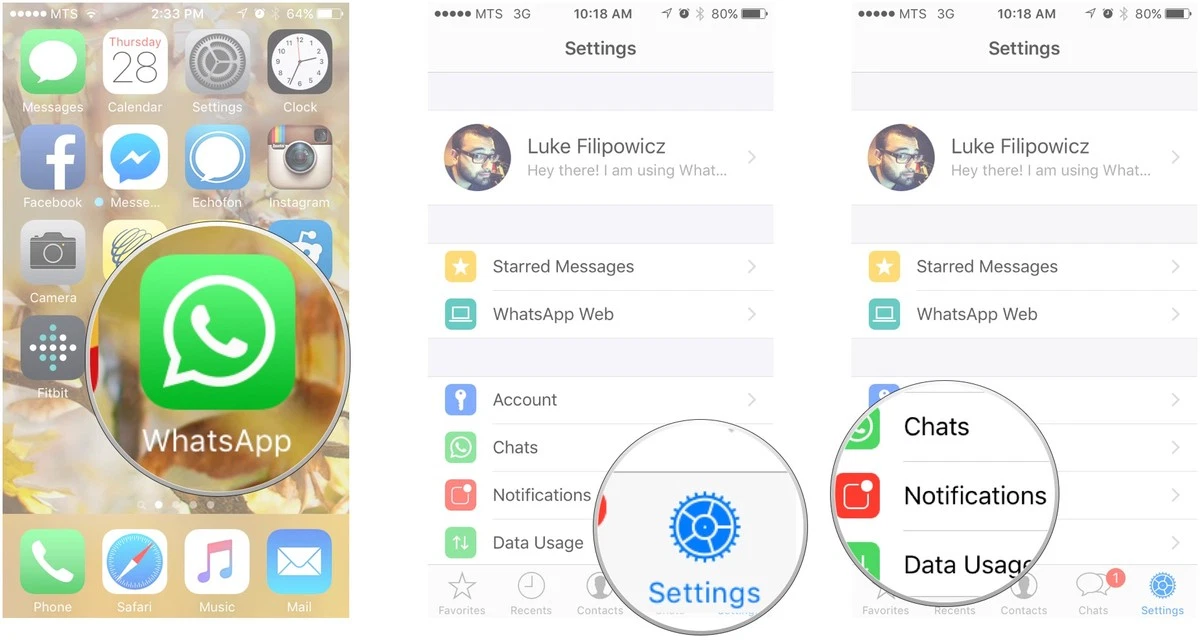
1. Launch WhatsApp from your Home screen.

2. Tap on the Settings tab. It is the gear icon located in the bottom left corner of your screen.

3. Tap on the Notifications button.


How to customize in-app notifications in WhatsApp for iPhone

4. Swipe up to scroll down the menu until you see the In-App Notifications button.

5. Tap on the In-App Notifications button.

6. Tap on the type of alert you want. You have three options:

  • None
  • Banners
  • Alerts

This will affect the type of visual notification you will see when you are in WhatsApp but not when you are on the Home screen or anywhere else on your phone.

How to turn sounds on or off for in-app notifications in WhatsApp for iPhone

1. Launch WhatsApp from your Home screen.

2. Tap on the Settings tab. It is the gear icon located in the bottom left corner of your screen.

3. Tap on the Notifications button.

4. Swipe up to scroll down the menu until you see the In-App Notifications button.

5. Tap on the In-App Notifications button.

6. Tap the On/Off button which is located beside the word sounds.

This button will turn on or off all sounds. If the white circle is over to the right and has a green trail behind that means it’s on. If the white circle is over to the left and there is no green around it that means it’s off.

How to turn vibration on or off for in-app notifications in WhatsApp for iPhone

1. Launch WhatsApp from your Home screen.

2. Tap on the Settings tab. It is the gear icon located in the bottom left corner of your screen.

3. Tap on the Notifications button.

4. Swipe up to scroll down the menu until you reach the In-App Notifications button.

5. Tap on the In-App Notifications button.

6. Tap the On/Off button which is located beside the word vibrate.

This button will turn on or off all sounds. If the white circle is over to the right and has a green trail behind that means it’s on. If the white circle is over to the left and there is no green around it that means it’s off.

WhatsApp Pay Explained: How to set it up, how to send and receive money, how it works and other questions answered

In a decision that will have a huge impact on India’s payments space, NPCI has allowed WhatsApp to go live on its United Payments Interface.

You use it to stay in touch with family, friends and work and now WhatsApp will also allow you to make payments, which the company said will be as easy as forwarding a message.

The National Payments Corporation of India (NPCI), India’s flagship payments processor, on November 5 allowed Facebook-owned WhatsApp to go live on its United Payments Interface (UPI).

WhatsApp Pay


With more than 400 million active users, India is the biggest market for WhatsApp and its entry into the payments space is bound to have a huge impact on the country’s digital payments landscape. To begin with, WhatsApp Pay can expand its UPI base with a maximum of 20 million users, the NPCI has said.

Here are answers to some essential questions that might be on your mind:

How can I get started with WhatsApp Payments and how do I send and receive money?

WhatsApp Payments runs on the Unified Payments Interface (UPI) platform. It allows users to transfer money instantly, directly between bank accounts. There is no need to create a wallet separately.

All you need is a debit card, open WhatsApp, click on 'Payments' in the attachment segment, authenticate yourself with the debit card number, create a UPI handle and generate a UPI pin. That’s it and you are good to go. Do remember the card that you use, as future transactions will happen from that bank account.

When can I get started?

If you are among the one million users who signed up for the beta-testing app, you are already on. Others can sign up from November 6.

How does it work?

Get on to the chat window with the person whom you need to transfer money to. Click on ‘attachments’, select ‘payments’, enter the amount to be transferred and authenticate using the UPI pin.

Just make sure that the receiver has updated the app to receive UPI payments.

Even if the receiver does not use WhatsApp Payments, you can still send money to any UPI ID the person might have, as UPI is interoperable.

What are the other UPI IDs that one can have?

Anything will work whether it is with Google Pay, PhonePe, Paytm, or any of the 189 banks that can issue UPI handles. Typically a user’s UPI ID is designed like an email ID: unique identifier@bank handle. UPI is a direct settlement between bank accounts and does not require a separate mobile wallet to be created.

Which are the banks WhatsApp is working with?

Consumers having an account with any of the 189 banks can use UPI. WhatsApp is working with five banks—State Bank of India, Axis Bank, HDFC Bank, ICICI Bank and Jio Payments Bank—and will issue handles with any one of these banks.

How will the 20-million user limit work?

One million people are already using WhatsApp Payments, for them it will continue normally. Now 19 million new users can join the platform. Once the 20 million limit is reached, WhatsApp will have to stop onboarding new users. However, NPCI is expected to extend the limit after due consideration.

Can I use WhatsApp to shop on Amazon or Flipkart?

Yes, one can use the WhatsApp payment handle to shop as well but, as of now, these integrations are not there. Eventually, WhatsApp Payments, like GPay, will be seen as a payment option during checkout.

WhatsApp Working to Add Fingerprint Security for New Web Sessions, Latest Beta Fixes ‘Recently Used Emoji’ Issue

WhatsApp is working on a feature to ensure that no one secretly creates a new session when temporarily using your phone.


WhatsApp is reportedly working on a new feature that allows users to secure a new WhatsApp Web session using their fingerprint. This looks to improve the overall security of your chats, keeping others from creating new web sessions without your knowledge. This new feature was spotted to be under development in the latest beta. The new WhatsApp for Android update also brings a fix for a bug that erased recently used emojis every time an update was installed on the app.


WhatsApp Working to Add Fingerprint Security for New Web Sessions, Latest Beta Fixes ‘Recently Used Emoji’ Issue


WABetaInfo has dug into the latest WhatsApp 2.20.200.10 beta for Android to discover that the instant messaging platform is working on the ability for users to confirm the creation of a new WhatsApp Web session using their fingerprint. This feature essentially looks to elevate the privacy and security of users ensuring that no one secretly creates a new session when temporarily using your phone. The tracker says that WhatsApp is currently working to implement the feature and it will be available in a future update. This means you may not be able to spot it even if you're on the latest update.


The latest WhatsApp 2.20.200.10 beta for Android update also brings bug fixes for a ‘Recently Used Emojis' issue that plagued several versions after 2.20.200. The bug erased all recently used emojis every time a WhatsApp update was installed. This bug has reportedly been fixed with the WhatsApp 2.20.200.10 beta for Android update.

The recent WhatsApp 2.20.200.6 beta for Android update a few days ago introduced a new sticker pack called Usagyuuun in the default sticker list inside the app. This animated sticker pack has been created by Quan Inc and is live for all new beta users on Android. This pack has a white cartoon character that depicts feelings of joy, anxiety, sadness, love, and a lot more. WhatsApp is also reportedly working on bringing a new Wallpaper section with the ability to set different wallpapers for different chats.

How to Video Call on WhatsApp Messenger

Group video calling on WhatsApp allows multiple users to connect at once.

WhatsApp, one of the most popular messaging apps in the world, isn't just popular for texting or voice calling. WhatsApp users also have the option to make video calls. The video calling feature is free on WhatsApp and to get started all you'll need is a working internet connection. The best thing is that WhatsApp Web video call is possible too. Follow this guide as we tell you how to make video calls on WhatsApp.


How to Video Call on WhatsApp Messenger


WhatsApp: How to make video calls from a smartphone

With WhatsApp, you can make video calls to individual contacts or groups. The process is pretty simple, just follow these steps.

  1. Open WhatsApp and select a contact to video call.
  2. Open their chat and hit the camera icon up top to place a video call.

While on a one-on-one call, there's also an option to add other people to the call. 

Here are the steps...!

  1. While on a WhatsApp video call, hit the add participant button in the top right.
  2. Choose a contact > tap Add.

Besides, adding contacts to one-on-one calls, you also get the option to start a group video call. Follow these steps.

  1. Open WhatsApp, select a group chat and open it.
  2. Once the chat is open, hit the camera icon up top to start a video call with the group.

As of now, WhatsApp supports up to 8 participants for group voice or video calls.


WhatsApp Web Video Call

To start a video call via WhatsApp Web, follow these steps.

  1. Open WhatsApp Web and login to your account.
  2. Hit the vertical three-dots icon and click Create a Room.
  3. You'll see a pop-up, go ahead by hitting Continue in Messenger. Note, you don't need a Facebook account for this to work.
  4. Now create a room and you'll be ready to start a video call.
  5. Just share the video call link with others on WhatsApp.
  6. To create a room with a specific contact or group, open that chat window, hit the attachment icon and click Room, which is the last icon in the list.

Facebook's Messenger Rooms feature allows video calls for up to 50 users at a time.

This is how you can make video calls via WhatsApp on your phone or your computers.

How to download and send Ganesh Chaturthi WhatsApp Stickers

WhatsApp Stickers have become a good option to wish and greet someone on some special occasions. As we all know Ganesh Chaturthi is here and if you are looking to download some good WhatsApp Stickers for Ganesh Chaturthi, follow out step-by-step guide:


Pre-requisites:
  • Latest version of WhatsApp
  • Android smartphone
  • Working internet connectivity


Steps to download and send WhatsApp Stickers

1. Open WhatsApp on your smartphone and head to any chat window

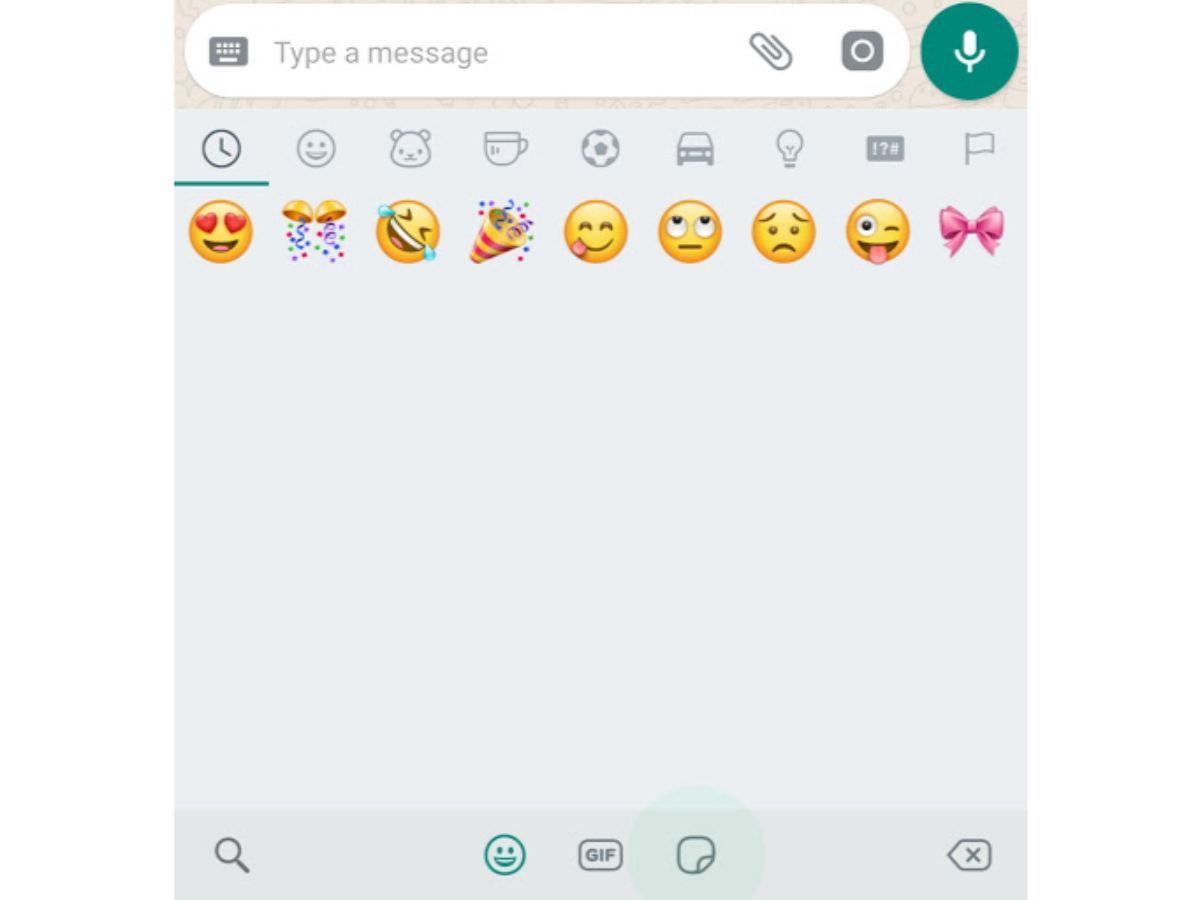
2.Now, tap on the 'Smiley' icon placed at the left corner of the typing area to access existing sticker packs

3.Now, tap on the stickers icon placed next to the GIF button below.

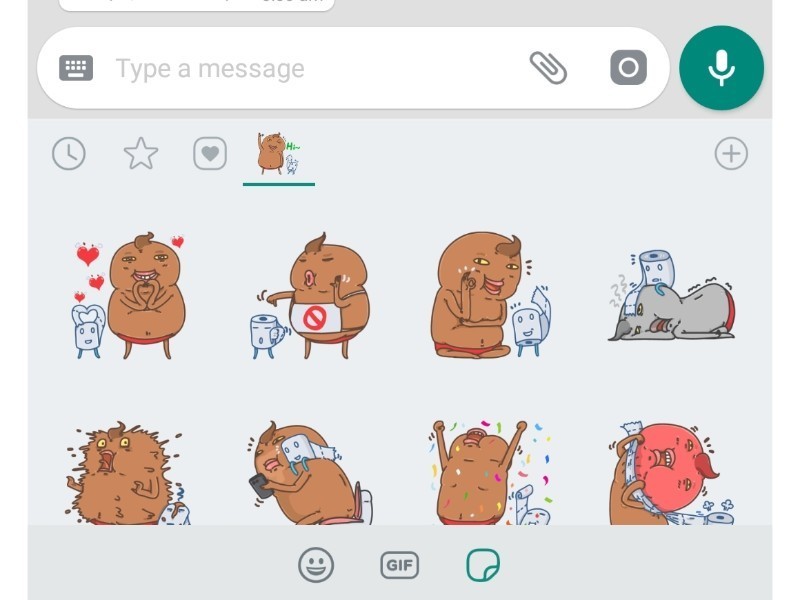
4.Hit '+' icon from the top-right of the Stickers section.

5.Scroll down to the end and tap on the 'Get more stickers.'

6.It will then redirect you to the Google Play Store

7.Search 'WhatsApp stickers for Ganesh Chaturthi and download anyone you like

8.Once downloaded, hit Open button and add them to WhatsApp

9.Once done, head back to WhatsApp and send the sticker


iOS users can simply ask their Android friends or use their secondary Android smartphone to go through the above-mentioned steps and send them a few stickers and then can save them as Favourites by long pressing on them.

How to check all the deleted messages in WhatsApp

WhatsRemoved+ App , a third party App which lets you read all the deleted WhatsApp messages. 

WhatsApp introduced the “Delete for Everyone” feature a long time back. But, this is was one of the biggest and useful ones from the Facebook-owned company. Initially, WhatsApp said that you are only allowed to delete any message within seven minutes. The messaging app later increased the time limit to offer a better experience. So, if you have sent a message to anyone, WhatsApp will not give you the “Delete for Everyone” option after about an hour.

WhatsApp messages are end-to-end encrypted, and the company says that chats are deleted from its server end as soon as the sender deletes them. It even says that recipients might see your message before it’s deleted or if deletion wasn’t successful. Yes, this is true. There are times when you have read the message in the notification panel and later on you see “message was deleted” label, which is sometimes funny.

Whenever a message is deleted on WhatsApp, you get notified in the app that it was deleted, which completely ruins the purpose of the feature. After deleting something, the person will likely ask you what was it that you deleted and then you have to explain. If you delete messages on Telegram, you won’t even know that a friend of yours might have messaged you. 


Telegram doesn’t even pull up that particular chat on the top, which is great. So, in case you miss deleted WhatsApp messages even in the notification panel, then there is a way of how you can check it. There is a third-party app called WhatsRemoved+ app, which lets you read all the deleted messages. You will find this app on Google Play Store, which shows this app has been downloaded by more than five million people. Read on to know more about how to check deleted WhatsApp messages on Android phones.

How to check deleted messages on WhatsApp?


How to check all the deleted messages in WhatsApp

Step#01: Open WhatsRemoved+ app and complete the setup process by giving it permissions.

Step#02: It will then also ask you to choose apps for which you want to get notifications and detect changes. You need to select WhatsApp and move ahead.

Step#03: You will also be asked if you want to save deleted files, which is completely your call. You are done and now, you will witness all the deleted messages in the WhatsRemoved+ app. 

Follow the above mentioned simple steps and read all deleted messages from WhatsApp.