How to Stop Facebook From Showing You Memories You'd Rather Forget

In today's digital age, social media platforms like Facebook have become an integral part of our lives. One feature that Facebook offers is the Memories feature, where it reminds users of posts, photos, and events from the past. While reminiscing can be enjoyable, sometimes Facebook may show memories that we'd rather forget. In this blog, we'll discuss how you can take control and stop Facebook from showing you memories you'd rather not see.


How to Stop Facebook From Showing You Memories You'd Rather Forget


Understanding Facebook Memories:

Facebook Memories is a feature designed to bring back moments from the past, such as posts, photos, and life events, that you've shared on the platform. These memories are shown in your News Feed or as notifications, often accompanied by a "On This Day" or "Memories" tag.

Why You Might Want to Control Your Memories:

While reliving happy moments can be nostalgic, there are times when Facebook Memories can bring back memories that are painful, sensitive, or simply not relevant anymore. This could include past relationships, old friendships, or events that you'd prefer not to be reminded of regularly.

Steps to Stop Facebook Memories:

Here are detailed steps to help you stop Facebook from showing you memories you'd rather forget:

  1. Accessing Memories Settings:

  • Log in to your Facebook account.
  • Navigate to the top-right corner and click on the down arrow to open the menu.
  • Select "Settings & Privacy" and then choose "Settings."
      1. Managing Memories Preferences:

      • In the left-hand menu, find and click on "Memories."
      • Here, you'll see options to control what types of memories Facebook shows you.
        1. Adjusting Preferences:

        • You can choose to see memories from specific dates, such as "On This Day" or "Memories from this month."
        • To stop seeing memories altogether, toggle off the "Show Memories" option.
          1. Customizing Memory Notifications:

            • If you still want to receive memory notifications but only for specific types of memories, you can customize this under "Notifications."

          2. Hiding Specific Memories:

            • If there are specific memories you want to hide, you can do so directly from your News Feed or the Memories page by clicking on the three dots (...) next to the memory and selecting "Hide memory."

          3. Blocking Memories from Specific People or Pages:

            • If memories involving certain people or pages are causing discomfort, you can block them from appearing in your memories by accessing the "People and Pages" settings under "Memories."

          4. Reviewing Past Memories:

            • You can also review past memories and manage them individually by going to the "Memories" section and selecting "See All Memories."

          Taking control of your Facebook Memories settings allows you to curate your digital nostalgia and avoid being reminded of moments you'd rather forget. By following these steps, you can customize your experience on Facebook and ensure that your trip down memory lane is a pleasant one.

          By implementing these strategies, you can make your Facebook experience more tailored to your preferences and avoid unwanted memories from resurfacing unexpectedly.

          Instagram DM Tricks: How to Add Special Effects to Instagram Messages

          Did you know you can now use cool new special effects for your Instagram DMs? With a recent software update, Facebook has merged Messenger with Instagram DMs, and since then the latter has received some cool new features such as the ability to set up a custom chat colour, vanish mode, custom emoji reactions etc. In this article, we'll be telling you about one of these new features that came with the merger.


          How to Add Special Effects to Instagram Messages


          Instagram DM: Add special effects to messages

          You can now add special effects in Instagram DMs, whenever you reply to someone or you send someone a new message. Follow these steps.

          1. First up, make sure that you have got the latest version of Instagram installed on your phone.
          2. Open any chat on Instagram and type a message.
          3. Tap the magnifier on the left, next to the text entry field.
          4. You'll now see four new effects to choose from.
          5. Tap and choose the one you like and that's it.
          6. Doing this will send a message along with the special effect.

          Apart from this, you can also save messages to use as quick replies. To do that, follow these steps.

          1. To save a sent message, long-press on it and tap Save.
          2. You'll be asked to assign a shortcut, enter it and hit Save.
          3. To save a received message, long-press on it > tap More > tap Save. Assign a shortcut command to it, and that's all.
          4. Now whenever you want to send a quick reply, simply use the shortcut instead of typing the complete phrase.

          This is how you can make the most out of Instagram DM's by adding cool special effects and saving quick replies.

          5 Facebook Tricks You Need To Know

           Facebook widely known as FB  most of us use it almost everyday, doing pretty much the same things over and over again. Updating status, checking out friends’ profiles, downloading and uploading pictures and the occasional messaging, group chatting etc.

          But, while most of us use Facebook everyday, the fact is that most of us also haven’t really tinkered with how all the above things in Facebook can be done a bit differently, more easily, more conveniently and maybe with a little less time and effort.

          Here are 10 Facebook usage tricks that we believe will definitely help you enjoy a new and better Facebook experience.


          Change your Status Update Font in Facebook

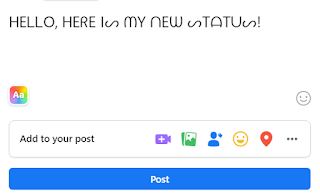
          The next time you post your status update, do something cool and change your update’s font. By default, Facebook gives you only one font. It is nice but everyone uses the same font! Where is the fun in that! Head over to this Facebook font page changer page on the web. Once there, type in your update and then copy paste one of the funky styles you see, right into your status update page in Facebook. Your updates can then look like this!


          Sync your Facebook Calendar with Google Calendar

          You would probably call your Google Calendar your secretary, wouldn’t you? That is how important Google Calendar has become for most people. Have you unsuccessfully tried to link one of your Facebook calendar events to your Google Calendar?  

          It is actually very easy! Follow the steps below.

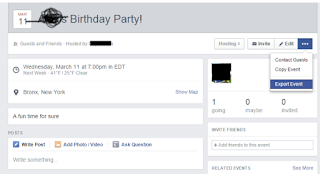
          Go to Events in Facebook. Choose the upcoming tab and then click on the Options tab. Once there, you can choose the export event option as shown in the following picture.


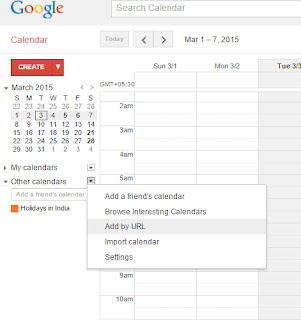
          Once you have copied the address, head on over to your Google Calendar. On the left hand tab, you will see an option called Other Calendars. Click on the drop down arrow next to it and then choose “Add by URL” as shown below.


          That’s it. Your Facebook Calendar event is now neatly synced into your Google Calendar, with all the details you had on Facebook.

          Stump your Friends with a “Blank” comment!

          The next time one of your favorite Facebook friends post a status update, you can head on over to their post and leave a blank comment. They will be stumped.

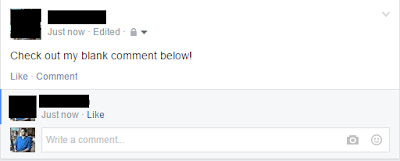
          They will surely ask you what you intended to type after seeing your blank comment, like below. This little prank can be a great conversation starter if you think about it!

          To leave a blank comment, hold down the Alt key on your keyboard and then type “0173”. Then, release all keys and press enter. You just left a puzzling blank comment!


          Stop Facebook from Tracking Your Every Move

          Did you know that advertisers on Facebook can target ads that will only show to you? Sounds scary, doesn’t it?

          The truth of the matter is that it is happening as you read this. Since Facebook is free, it makes money by making its massive user base available for targeted advertising, something that earns them billions.


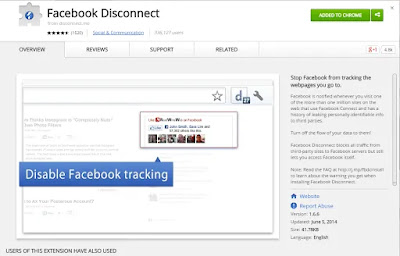
          If you would rather not be a statistic that is constantly tracked by Facebook, install Facebook Disconnect, available for both Chrome and Firefox.

          Enabling these extensions is pretty self-explanatory and, once activated, you can be assured that the relentless tracking from Facebook would have stopped.

          Choose Who Sees You Online on Chat?

          By default, when you are online and on chat, your name will have a green circle next to it, indicating that you are online and ready to chat away.

          While you might be in the mood to chat with just some people on your FB friend list, chat initiations from certain friends or just acquaintances can rather be more of a nuisance. Once again, just like how you can selectively share your status updates with certain people, you can choose to be shown as online in chat only for some people.

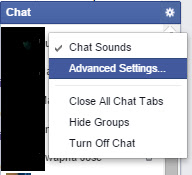
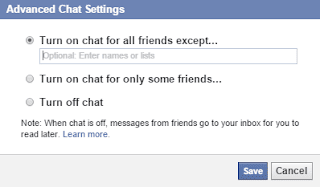
          Click on the little Settings gear icon on the right hand corner in the small Chat window that you see at the bottom of Facebook.


          Once there, enter people that you want to be seen as available to chat with or leave out people who you don’t want to see you as online. Then, save the new settings and enjoy Facebook chat only with people you actually want to chat with!

          Facebook Messenger Introduces Zoom-Like Screen Sharing Feature

          Facebook Messenger has introduced a screen sharing feature for app users on Android and iOS. The same can also be accessed on the Web and Desktop via Messenger Rooms. 

          Facebook Messenger Introduces Zoom-Like Screen Sharing Feature

          Just like Zoom, people can instantly share their Mobile or Desktop screen and activities with their friends on Messenger. While app users can share their screens with up to eight people in a group video call, Messenger Room supports up to 16 people at once. Earlier this month, Facebook was reported to be working on plans to integrate its Messenger with WhatsApp, enabling communication between the two apps.

          Rolling out on mobile platforms, the new screen sharing feature allows Facebook Messenger users to share their phone screens with family and friends. Through this, users can share a live view of whatever they are doing on their phones. Facebook says that the new feature “makes it easy to stay connected and close with your loved ones, even when you're physically apart.”

          On the Messenger app, a group video call can support up to eight people at a time. On Messenger Rooms, up to 16 people can connect via mobile devices, on the Web, or on their desktop.

          Facebook also announced plans to expand the number of people with whom you can share your screen to 50 people. The social media giant is also planning on adding some control features soon that would let the Rooms creators decide whether to limit the ability to share screen to themselves or allow all participants to do the same.

          Earlier in July, Facebook was reportedly working on integrating the Messenger with WhatsApp. When this new feature rolls out, the two online chat apps will be able to communicate with each other. However, it isn't clear yet on how Facebook plans to maintain data encryption and user security when the integration takes off.

          How To Create Your Own Avatar and Share on Facebook

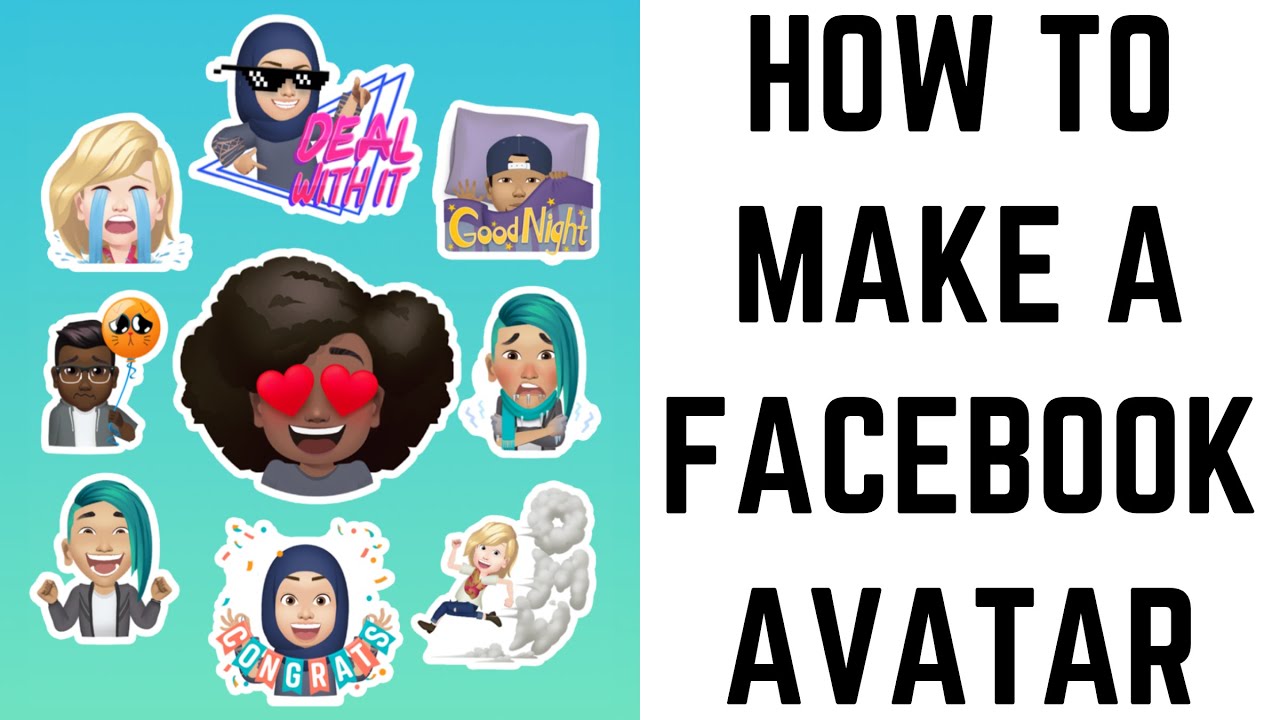
          Haven't you created a Facebook Avatar yet? Well, you are missing out on a lot of stuff. The latest feature rolled out by the social networking giant is the newest addiction among users. It lets you create an avatar, which is a cartoony depiction of yourself. What's interesting is that you can customize the same with a variety of hairstyles, faces, and outfits. This is almost similar to Apple's Memoji and Bitmoji avatars.

          How to Make a Facebook Avatar

           You can use the same across Facebook as your profile picture, comments or stories and in Messenger chats. Also, the Facebook avatar will be available as a sticker in apps such as Twitter, Snapchat, Instagram, and Mail.

           How To Create Facebook Avatar

          Follow the simple steps to create your Facebook Avatar.

          Step 1: Open the Facebook app on your smartphone and tap menu button at the top right corner on Android and at the bottom right corner on iOS. 

          Step 2: Tap See More and choose Avatars. 

          Step 3: Tap Next and choose Get Started. 

          Step 4: Choose your preferred skin tone from the 27 options that are available and tap Next.
           
          Step 5: Now, you will be asked to select a hairstyle for the avatar from options such as short, medium or long and a Color. 

          Step 6: The customization is the Face, wherein you will be asked to choose a face shape, face lines and complexion. Then, customize your eye shape, color and eyelash length. Later, move on to the Eyebrows shape and color. It is also possible to add glasses. After the Eye icon, head on to customize the nose and mouth by choosing the desired shape, lip color and facial hair. 


          Step 7: After the face, choose a body shape, an outfit that suits you the best, and add accessories such as hat, car ears, or scarf.   

          Step 8: Once you are done with the customization, you can tap on Next and Done.

          How To Use Facebook Avatar?

          To use the Facebook Avatar you have created, you just have to tap the smiley face icon as you do to access emojis in the 'Write a Comment' section on Facebook. Doing so, you will get the avatar you created that can be used in conversations.